Connect Codex
You connect once. After that Codex works inside the kitchen, where your projects live. You need the ChatGPT app (Mac) or the Codex app (Windows) and a ChatGPT account.
The same steps are in Eggie: open the console → Agents → Codex. When it’s done, Eggie marks it Connected.
Codex connects to the kitchen over SSH. Your Hostname and SSH port are on the card in Eggie → Agents → Codex. For the Identity file path you need the private key file you downloaded when you made your SSH key in the Eggie web app. It is usually in your .ssh folder, named like eggie-…_ed25519.
Open Codex
Open the ChatGPT app and switch to Codex.
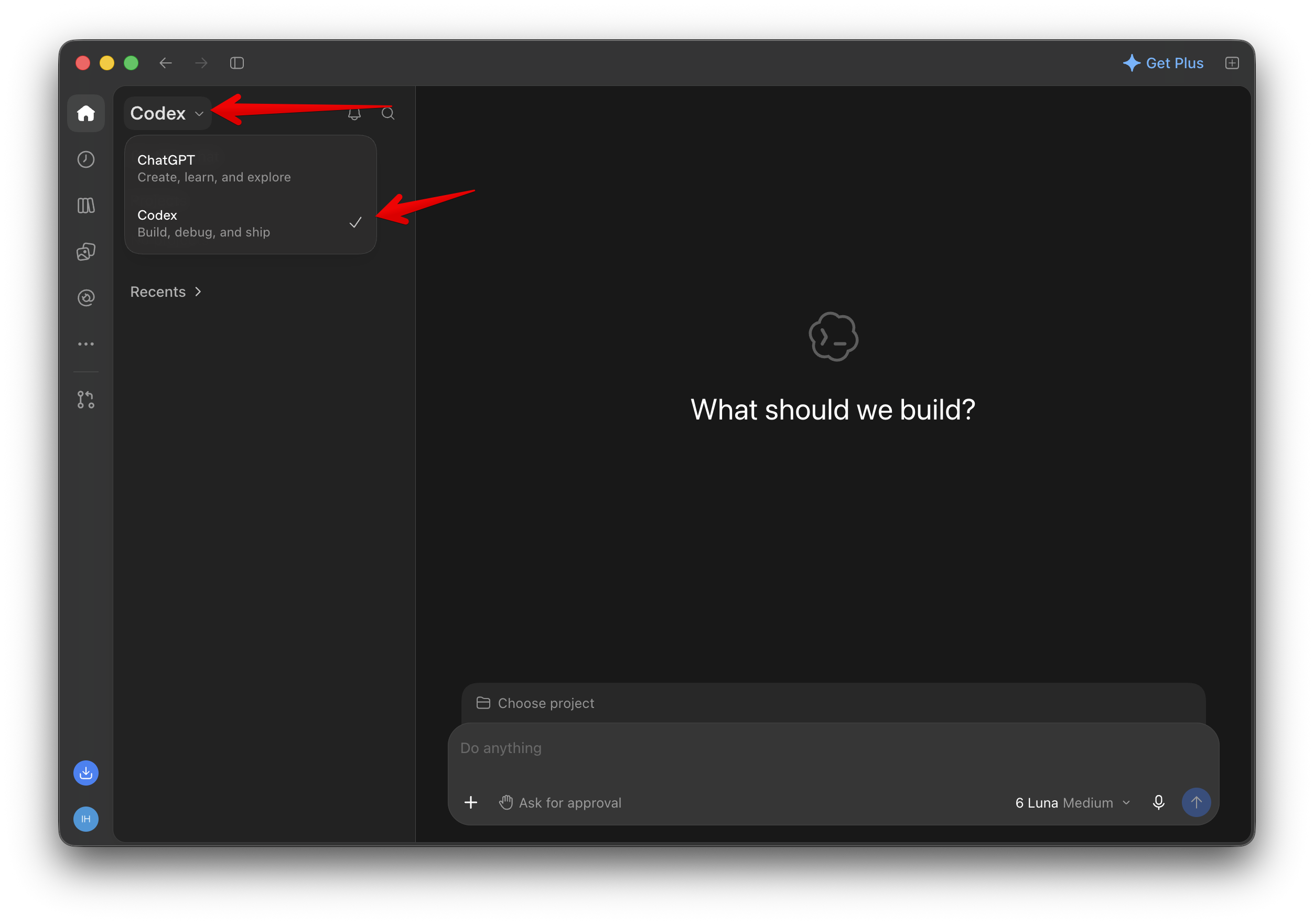
Add a remote connection
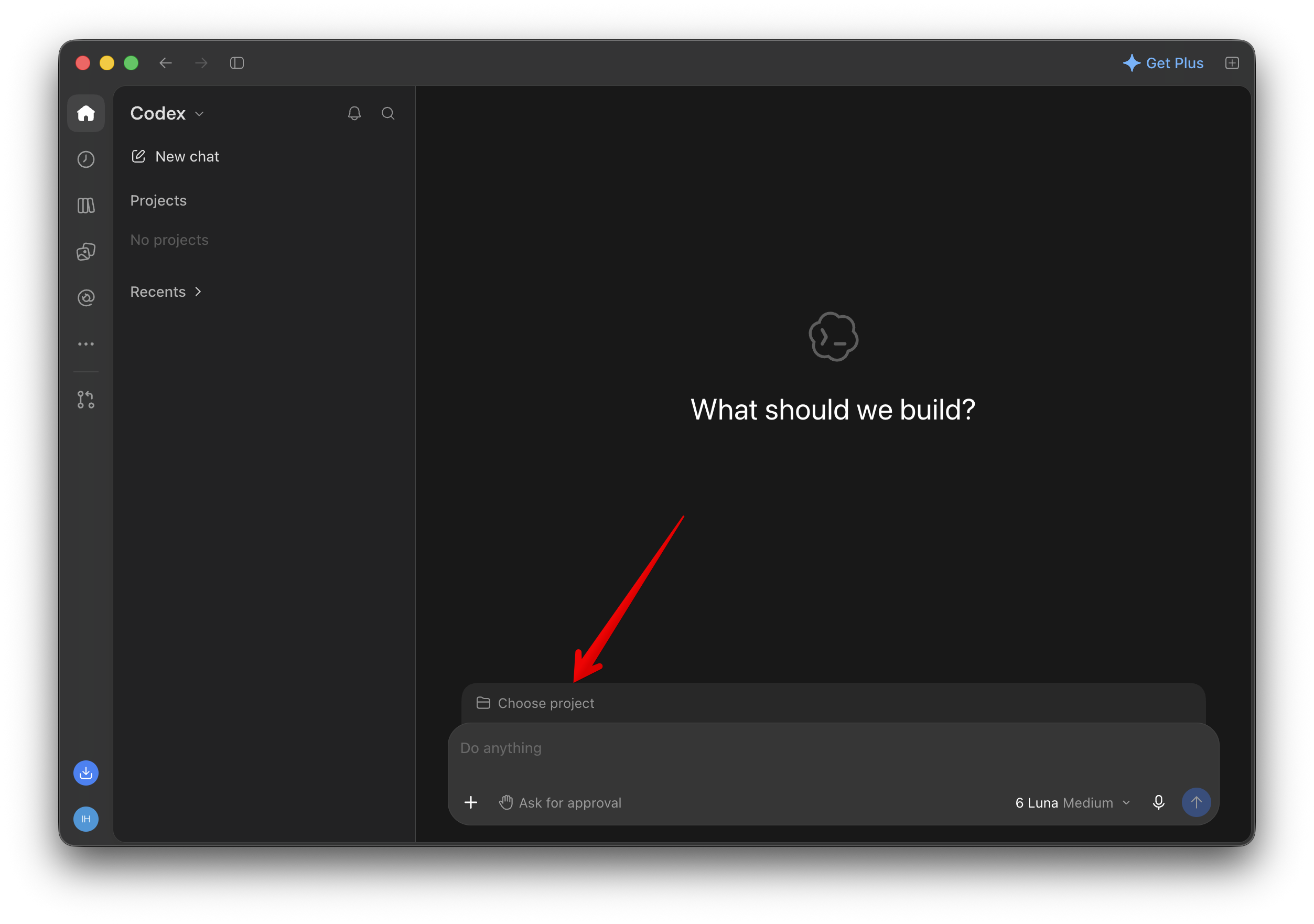
- Click Choose project above the prompt box.
- Name the project, open the Add a folder on this computer menu and select Add remote.
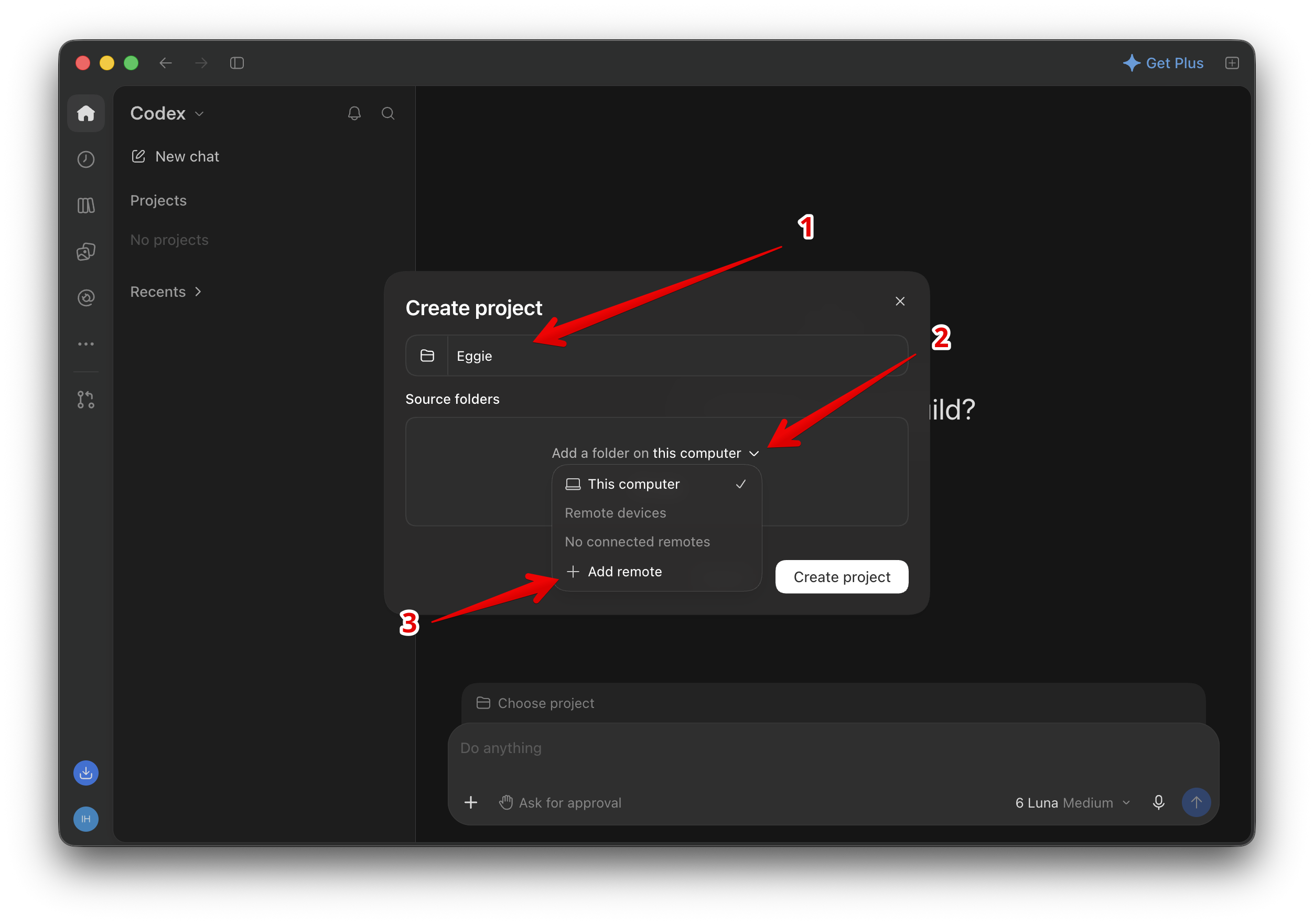
Enter the details
- Name the connection Eggie and select Identity.
- Copy the Hostname and SSH port from the card in Eggie.
- For Identity file path, enter the path to the private key file you downloaded from Eggie.
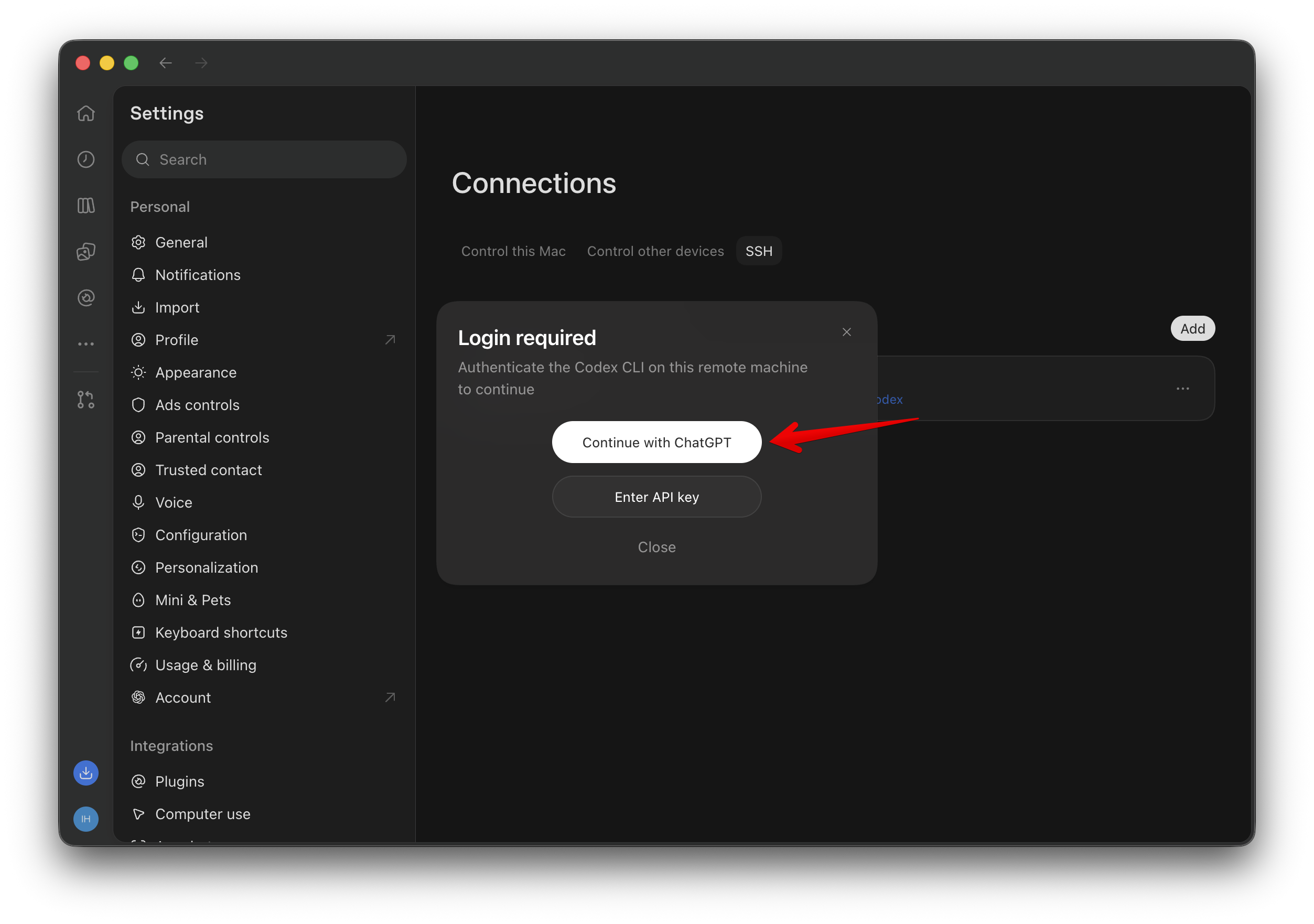
- Click Save, and sign in with ChatGPT if asked.
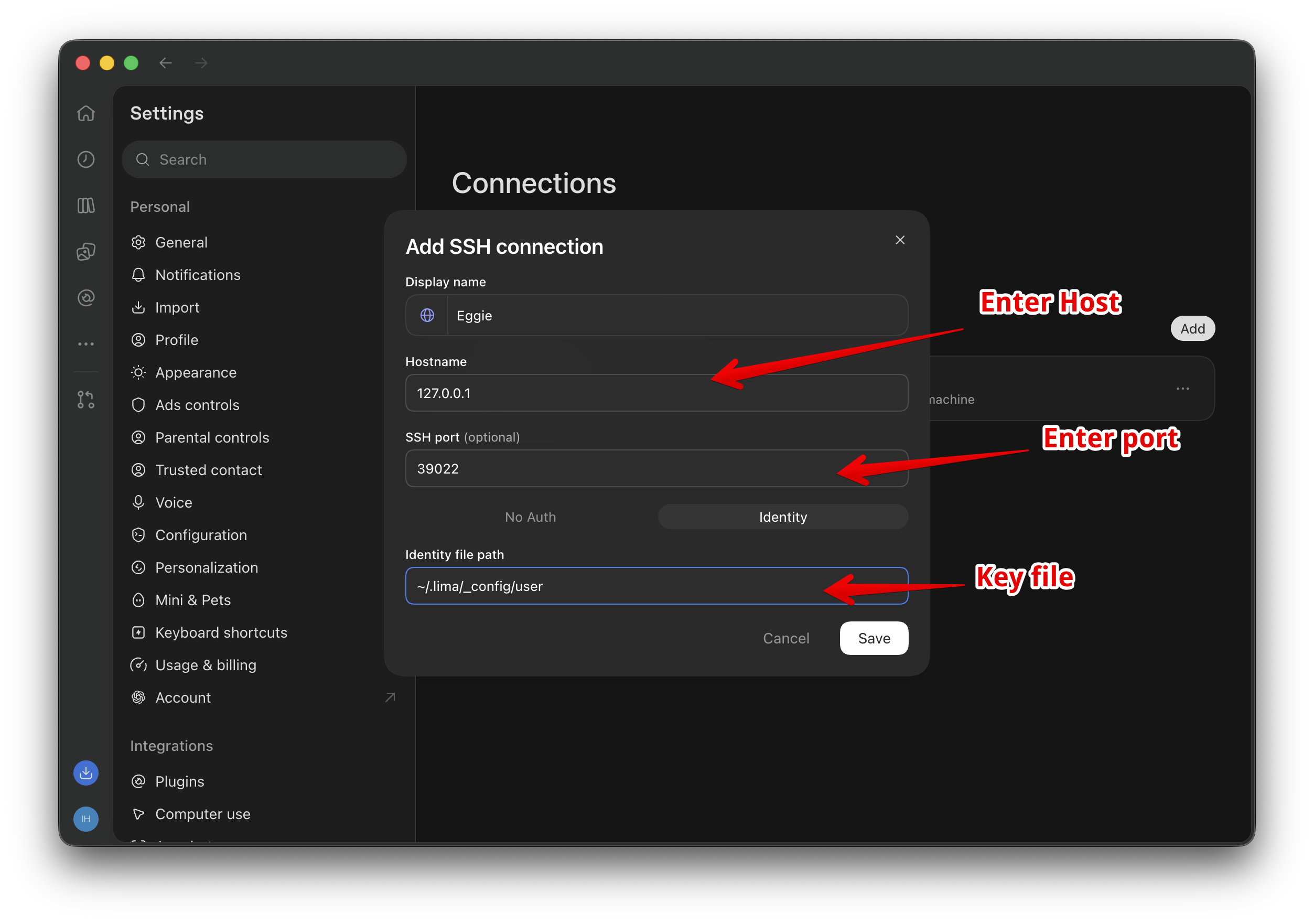
Create a project
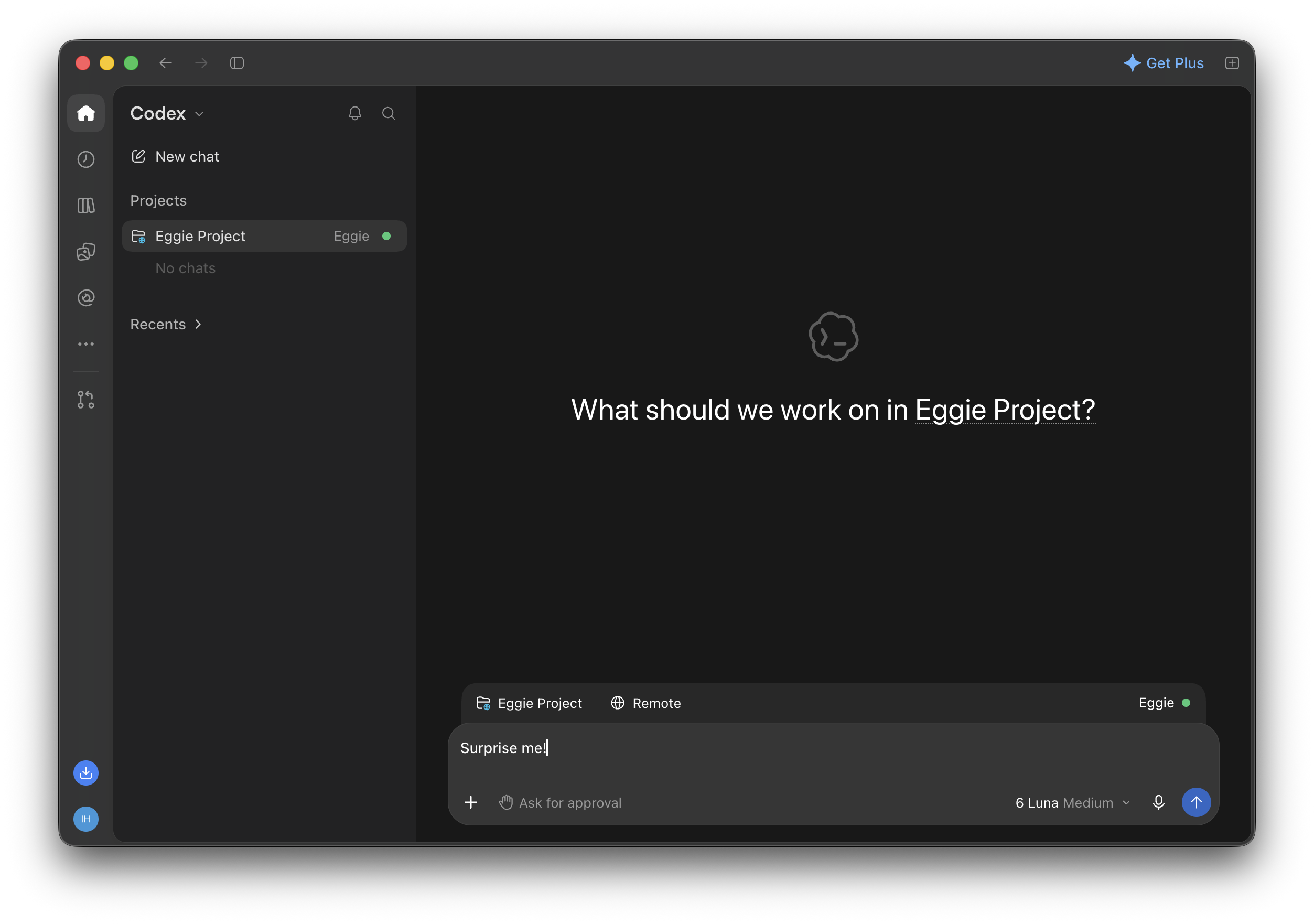
- Create a new project.
- Enter the project’s name.
- Select Eggie as the remote device.
- Select the projects folder and save.
- Click Trust folder if asked.
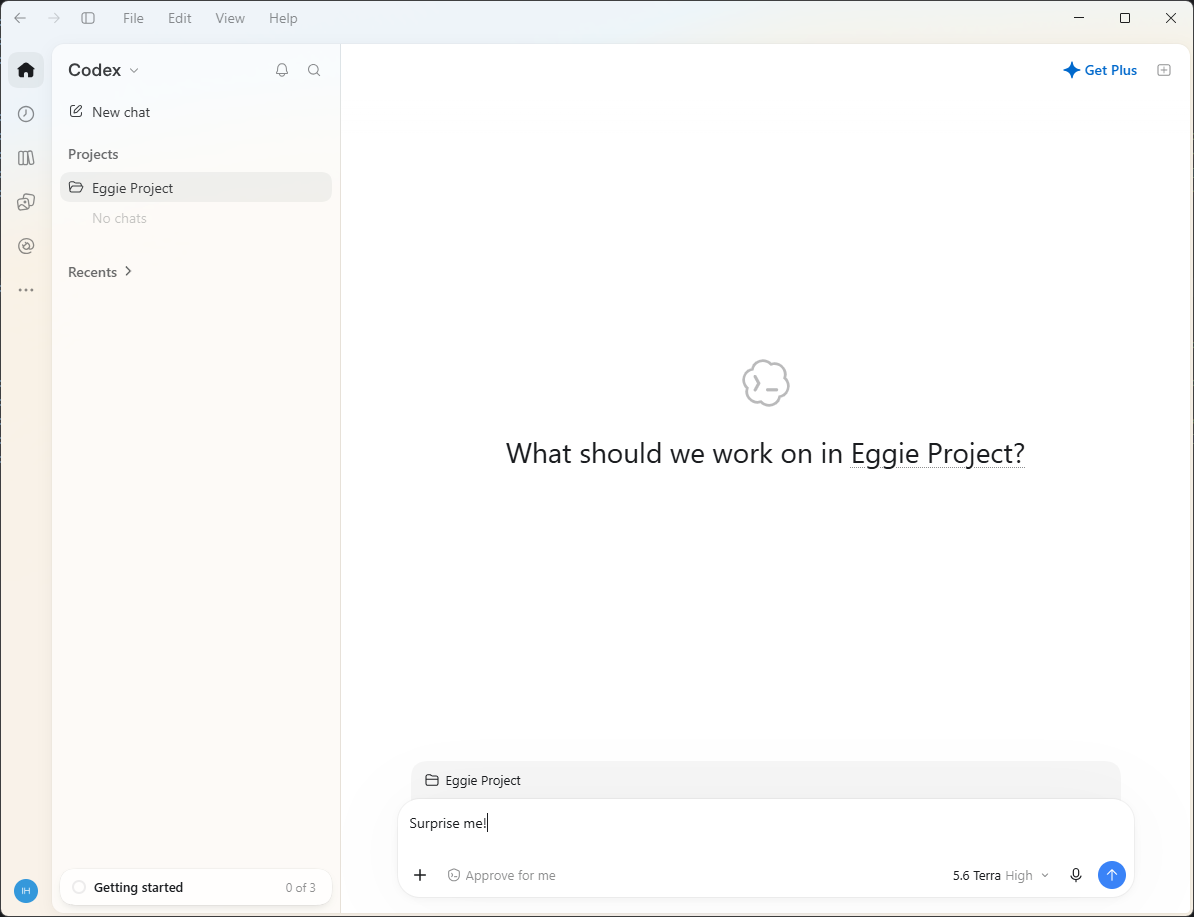
Start prompting
Describe your idea and let Codex build it.
Codex connects to the kitchen over SSH. Your values are on the card in Eggie → Agents → Codex: Hostname, SSH port and Identity file path.
Open Codex
Open the ChatGPT app and switch to Codex.
Add a remote connection
- Click Choose project above the prompt box.
- Name the project, open the Add a folder on this computer menu and select Add remote.
Enter the details
- Name the connection Eggie, select Identity, then copy the hostname, SSH port and identity file path from the card in Eggie.
- Click Save, and sign in with ChatGPT if asked.
Create a project
- Create a new project.
- Enter the project’s name.
- Select Eggie as the remote device.
- Select the projects folder and save.
- Click Trust folder if asked.
Start prompting
Describe your idea and let Codex build it.
Make eggie-vm the default
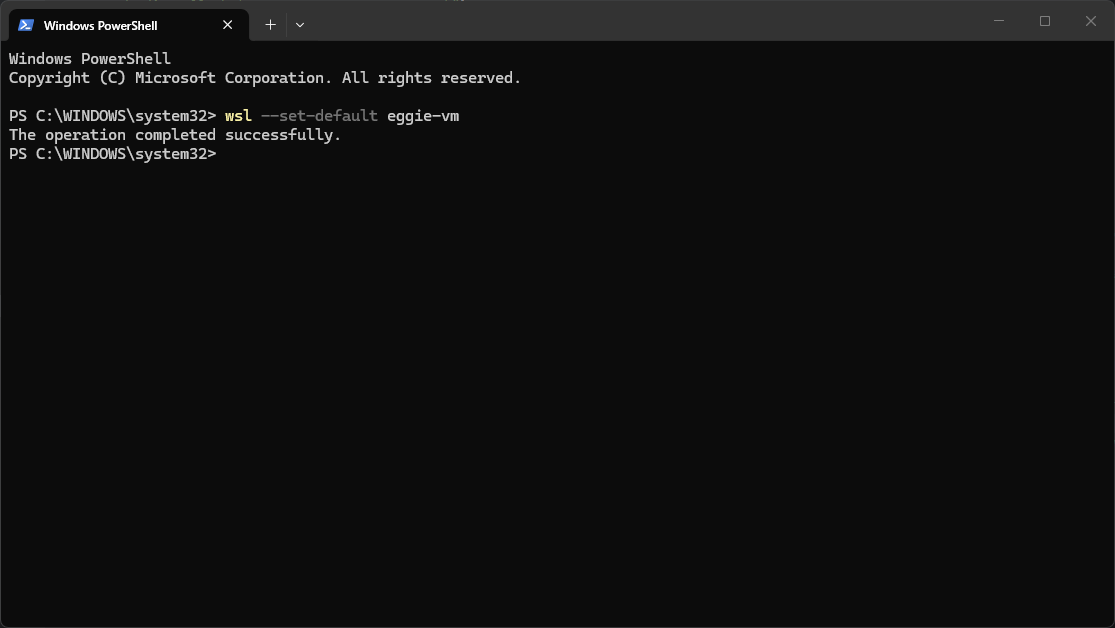
- Search for Windows PowerShell in the Start menu and open it.
- Run:
wsl --set-default eggie-vm - If Codex is already open, restart it.
Run Codex in WSL
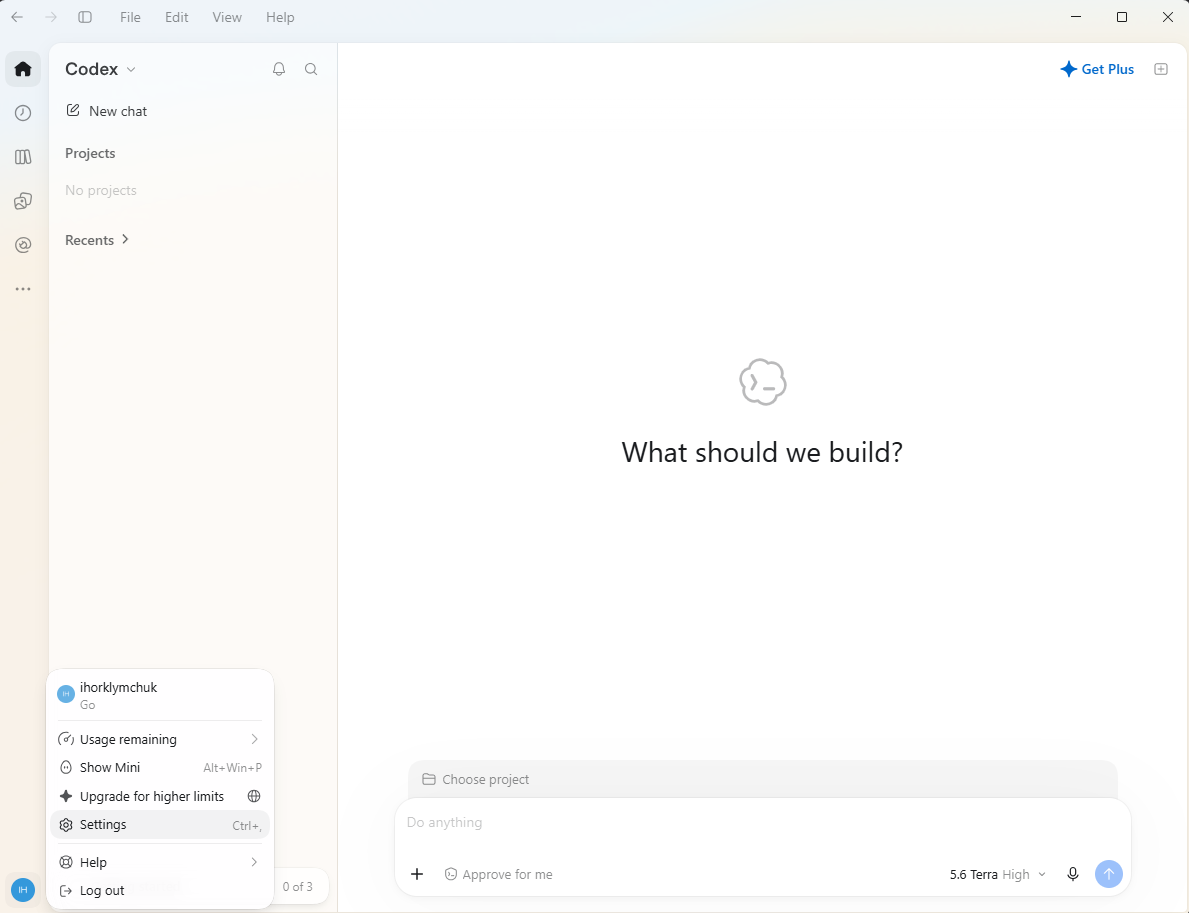
- Open the Codex app and sign in.
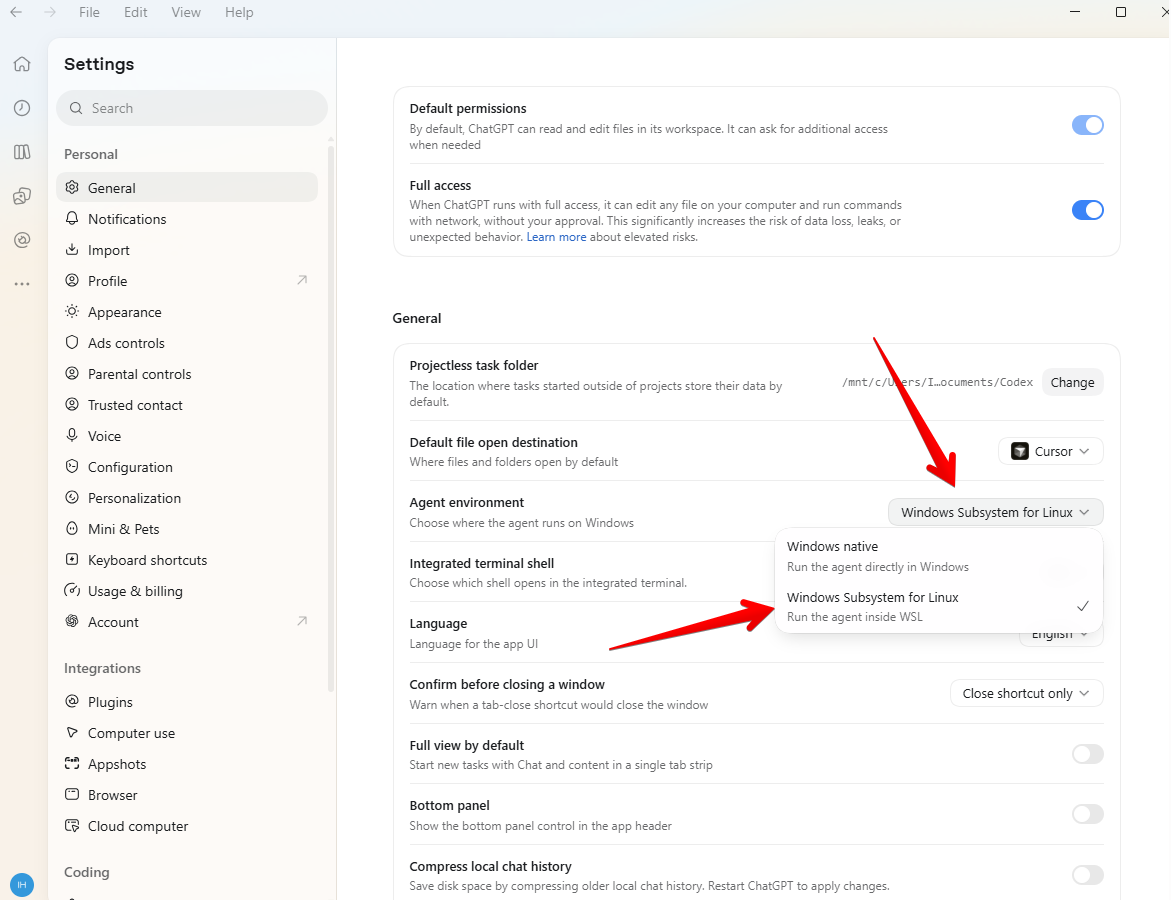
- Open Settings.
- Switch the agent from Windows native to WSL.
Open the projects folder
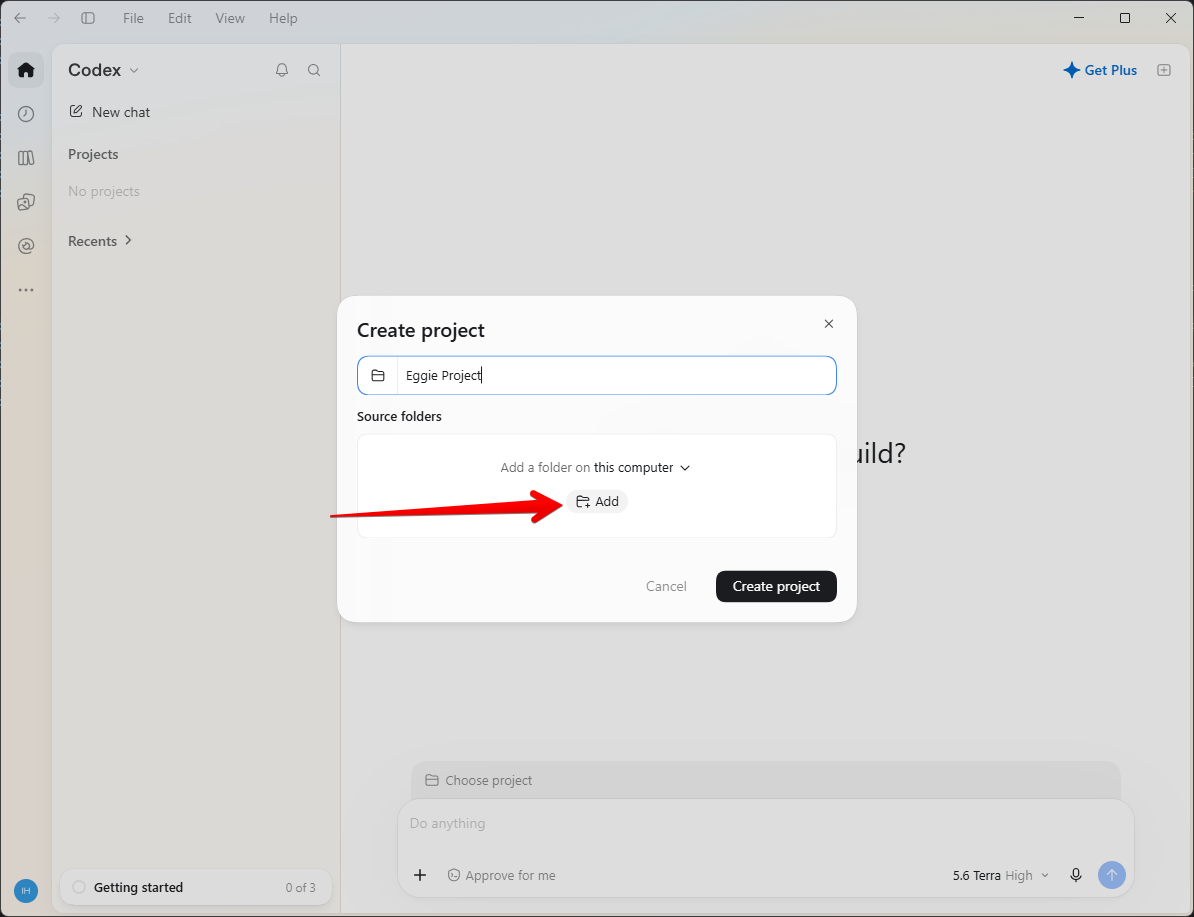
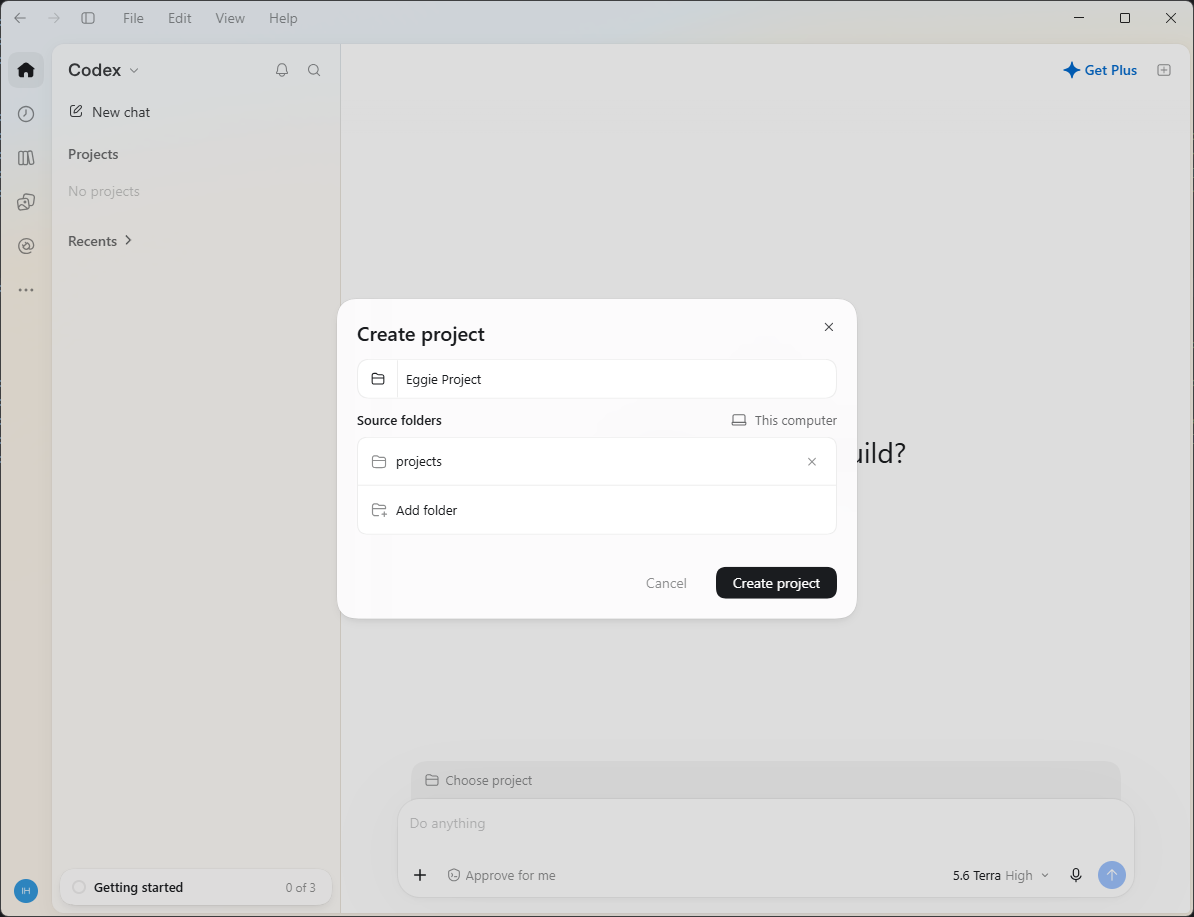
- Click Add new project.
- Paste this path into the address bar and select the folder:
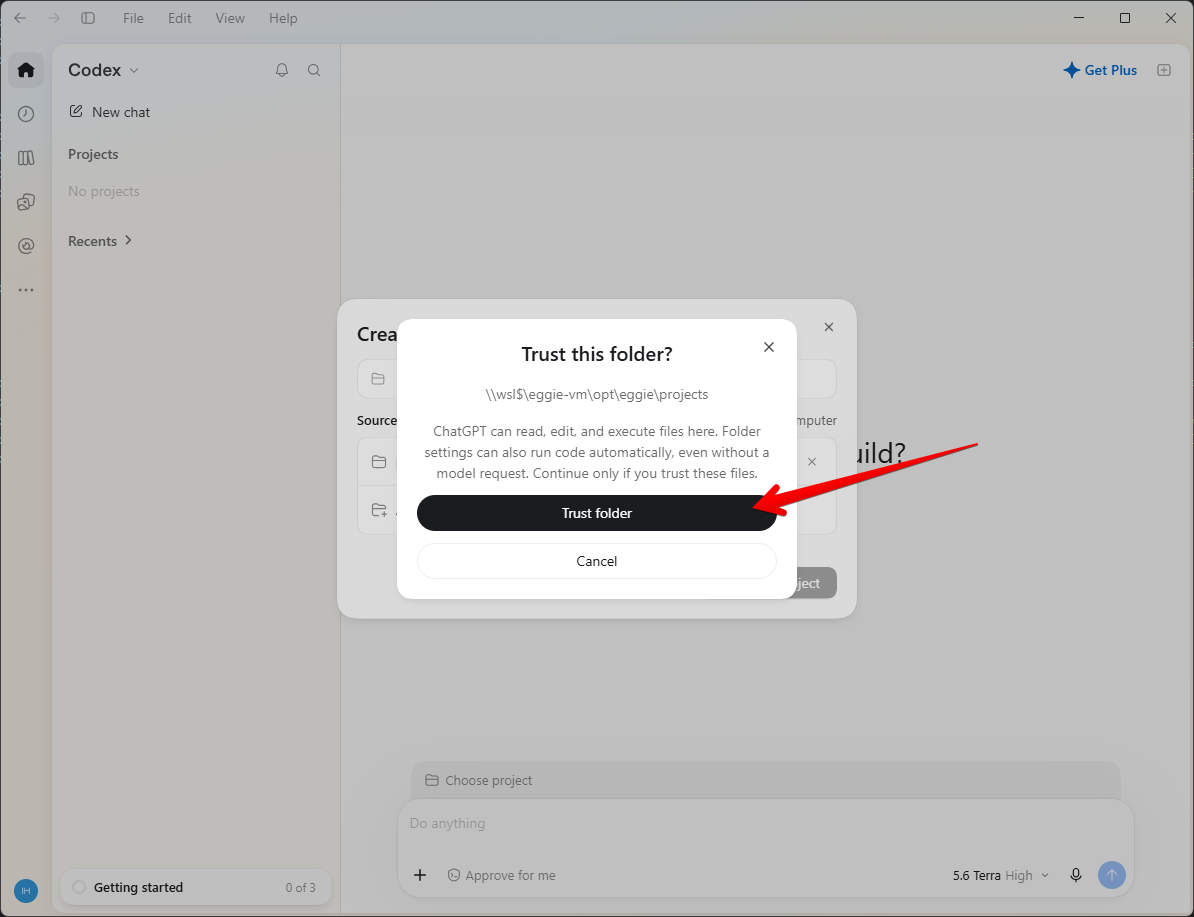
\\wsl.localhost\eggie-vm\opt\eggie\projects - Click Create, then Trust folder if asked.
Start prompting
Describe your idea and let Codex build it.
Something not working? See Troubleshooting.