Install on Windows
Setup takes a few minutes. If WSL was never turned on, add a restart.
Download Eggie
You get a file named like
EggieSetup-0.2.5.exe.Run the installer
Open the file you downloaded and go through the installer. On the last page leave Open Eggie ticked and click Finish.
Let setup run
Eggie checks your computer, downloads its Linux machine and sets up the kitchen. You’ll see each step as it goes. The first time takes a few minutes — that’s normal.
Approve and restart (only if asked)
If WSL was never on, Windows asks for permission once — click Yes. Then Eggie asks you to restart. After you sign back in, setup carries on by itself.
Sign in
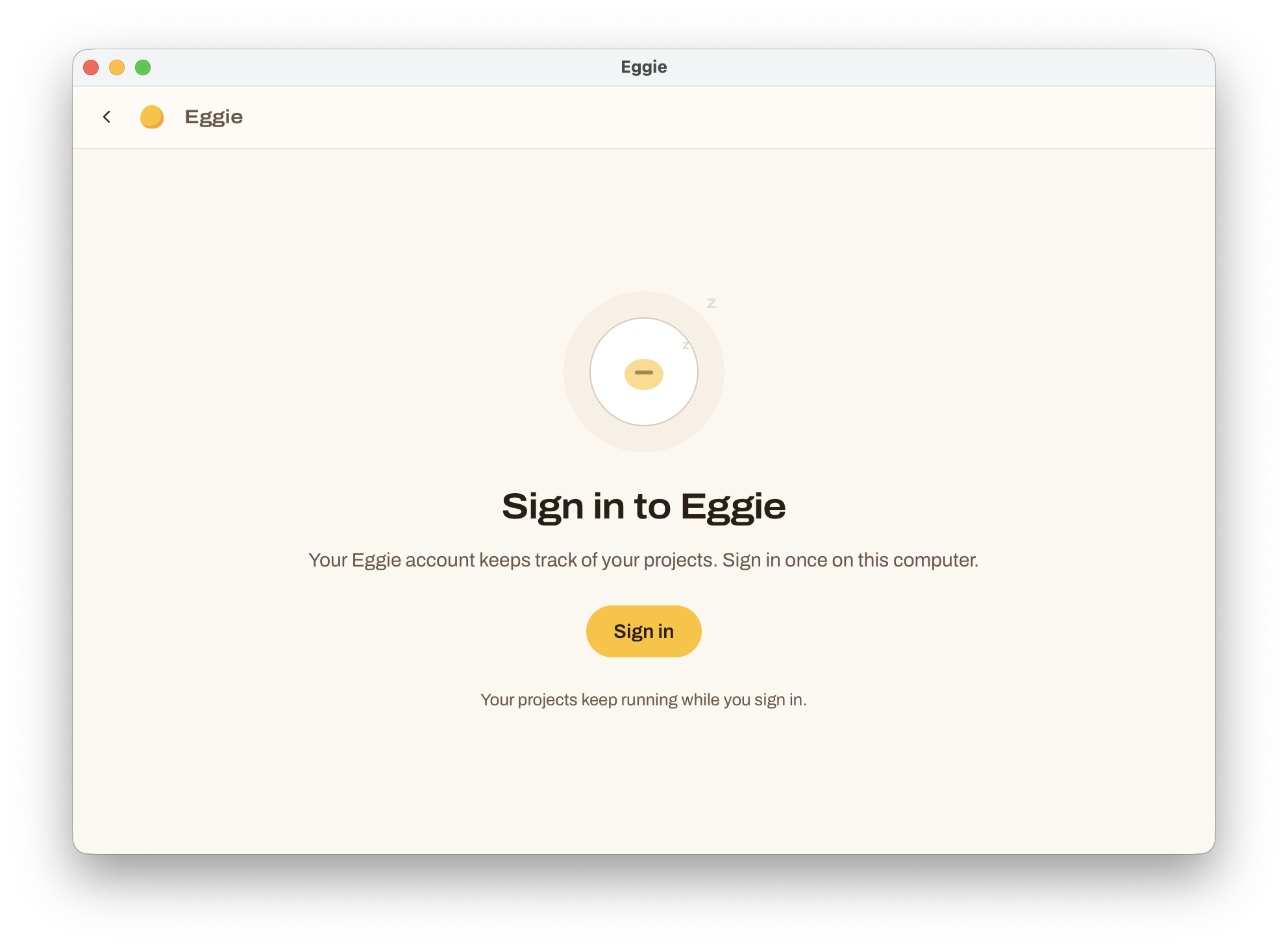
When setup is done, Eggie asks you to sign in to your Eggie account. You only do this once on this computer.
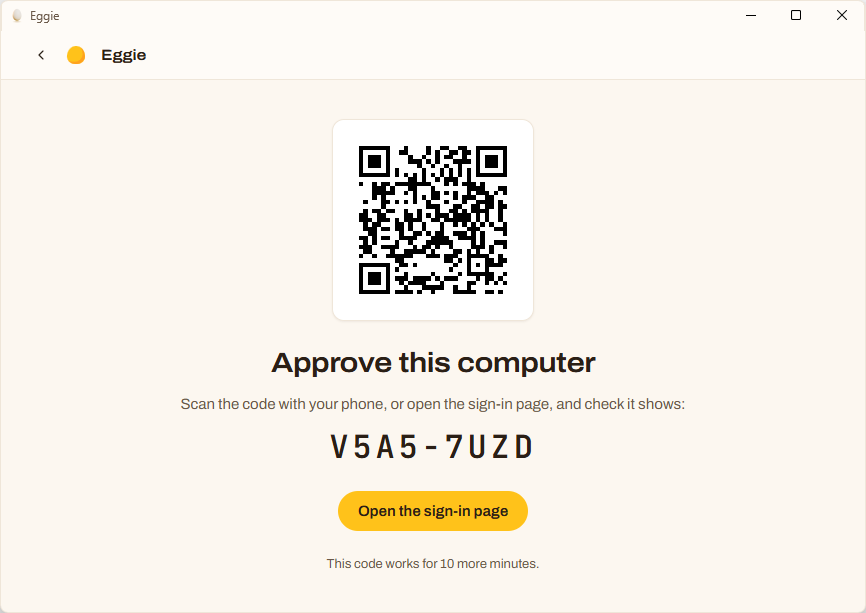
- Click Sign in. Eggie shows a link and a QR code.
- Open the link in your browser, or scan the QR code with your phone.
- Sign in at app.eggie.io. Eggie picks it up on its own.
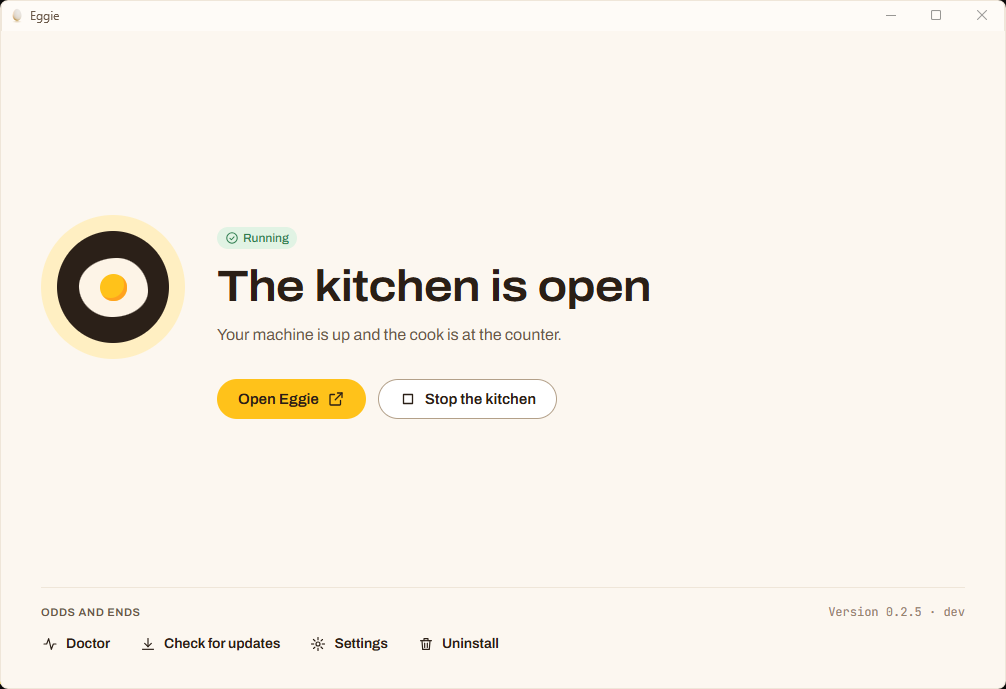
The kitchen is open
When you see The kitchen is open, Eggie is ready.
Next: connect your coding agent.
Good to know
- Eggie starts when you sign in to Windows. You can turn this off in Settings → Open Eggie when I sign in.
- Closing the window doesn’t stop Eggie. It stays in the tray next to the clock and your projects keep running. To stop everything, right-click the tray icon and choose Quit Eggie.
- Setup stopped at the first step? Usually virtualization is off. See Troubleshooting.