Install on Mac
Download the right package
There are two packages:
- Download for Apple Silicon (M1 and newer)
- Download for Intel
Not sure which Mac you have? Open the Apple menu → About This Mac. If it says Chip: Apple M…, take Apple Silicon. If it says Processor: Intel, take Intel.
Install the package
Open the file you downloaded and follow the installer. It asks for your Mac password.
Open Eggie
Open Eggie from your Applications folder. Setup starts on its own and downloads everything it needs.
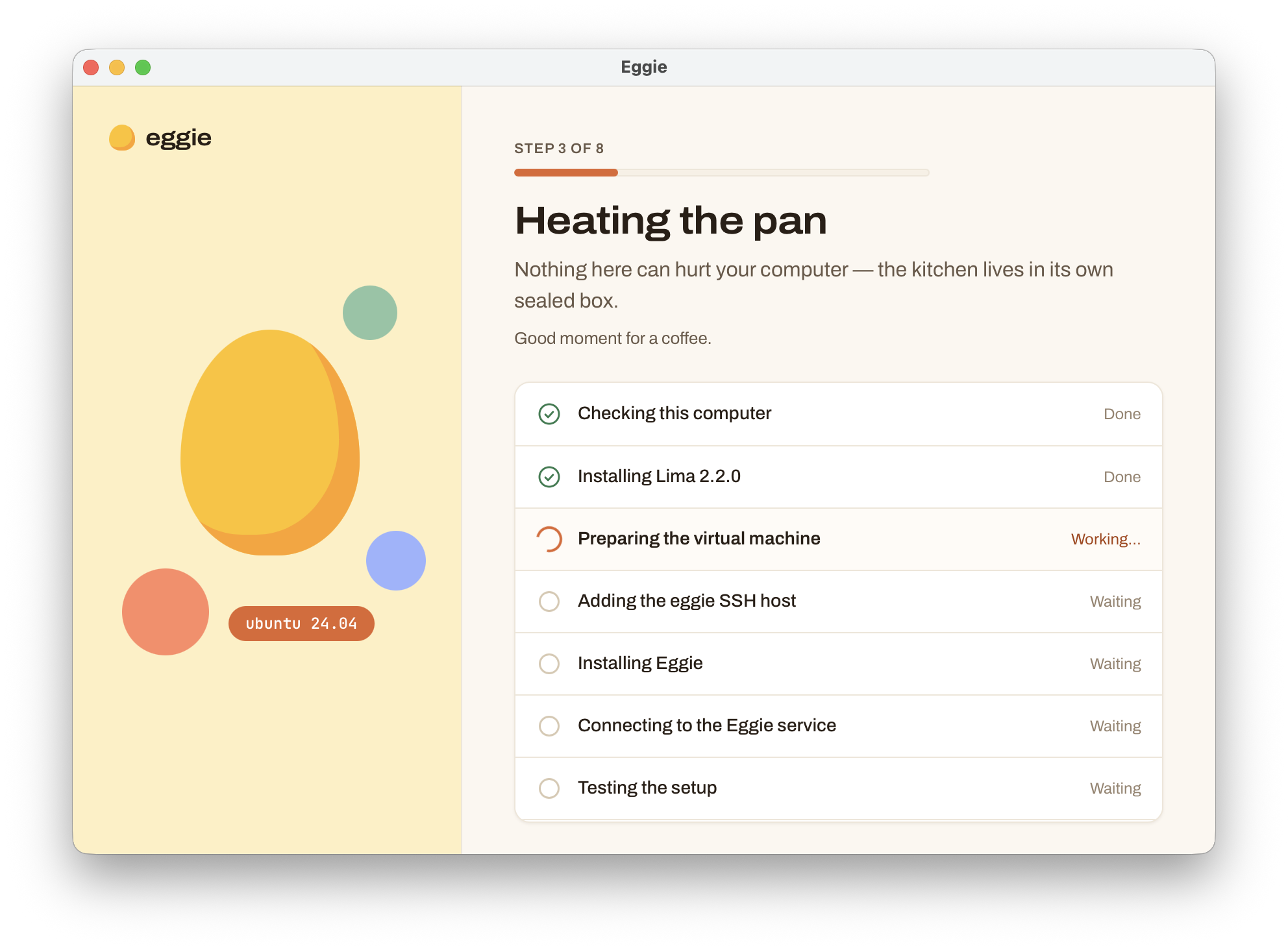
Let setup run
The first time takes a few minutes. You’ll see each step as it goes.
Sign in
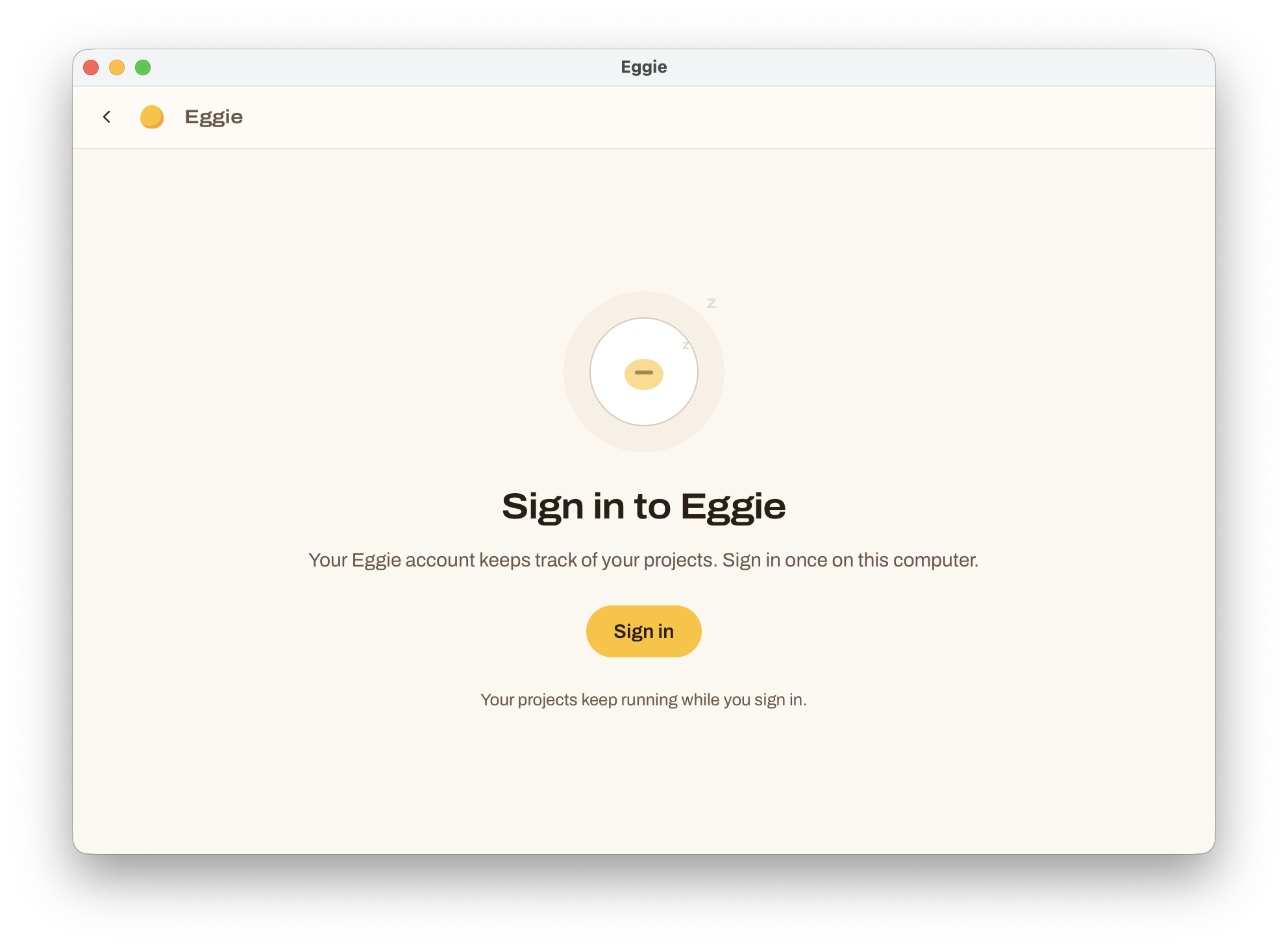
When setup is done, Eggie asks you to sign in to your Eggie account. You only do this once on this computer.
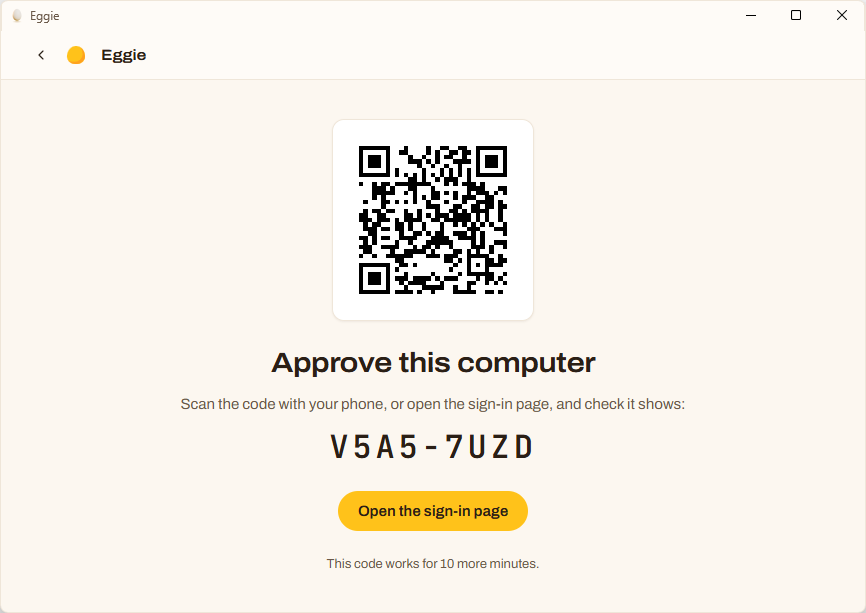
- Click Sign in. Eggie shows a link and a QR code.
- Open the link in your browser, or scan the QR code with your phone.
- Sign in at app.eggie.io. Eggie picks it up on its own.
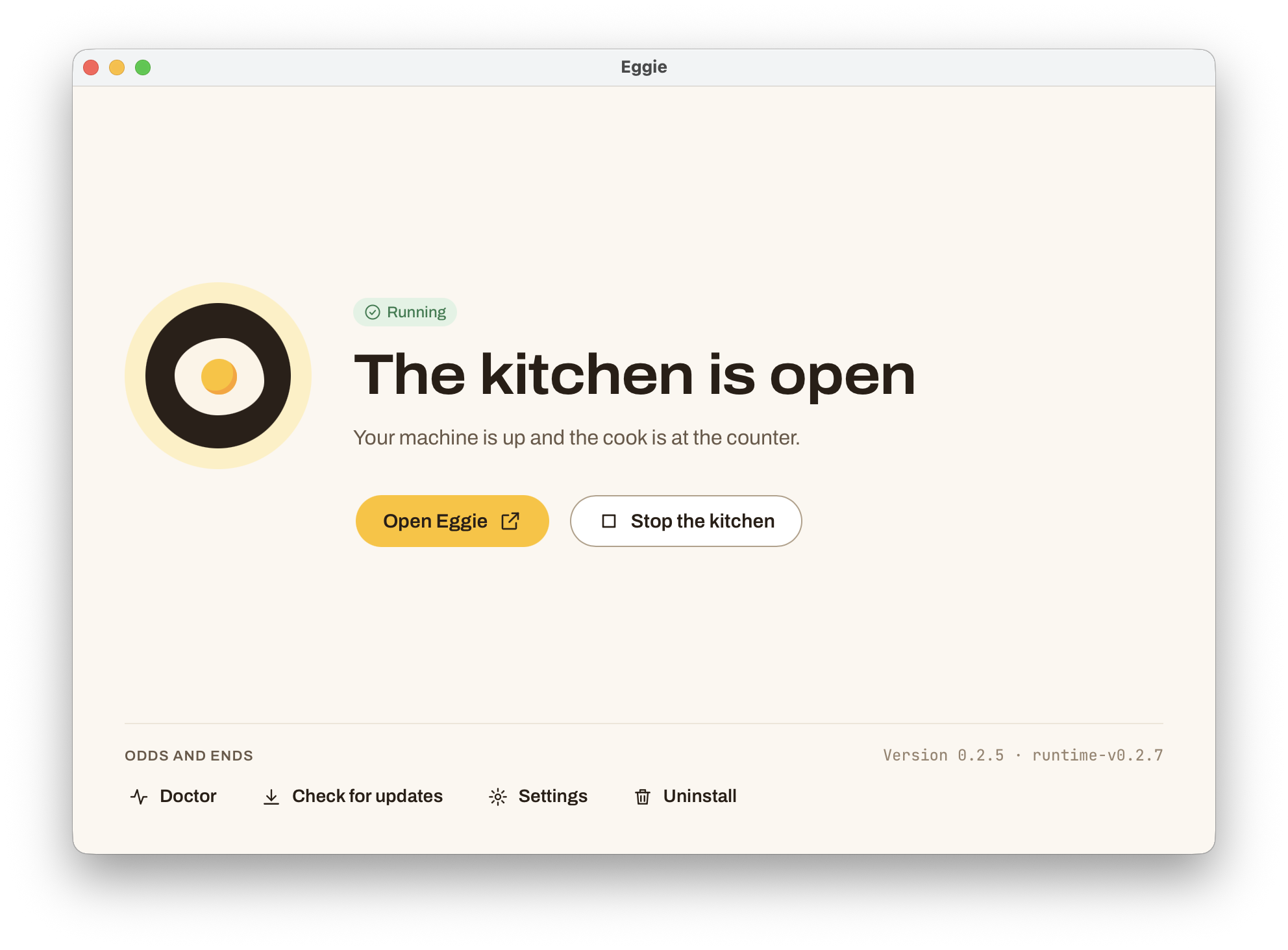
The kitchen is open
When you see The kitchen is open, Eggie is ready.
Next: connect your coding agent.
Good to know
- Eggie opens when you log in to your Mac. You can turn this off in Settings → Open Eggie when I sign in.
- Closing the window doesn’t stop Eggie. It stays in the menu bar and your projects keep running.
- To stop everything, press Cmd+Q in Eggie. That stops the kitchen and quits the app.